
Choose specific pages or a range
Extract pages 2–4 from a longer PDF and check the output page count.

Create a new PDF from selected pages.
Extracting selected pages creates a smaller document with its own page order.
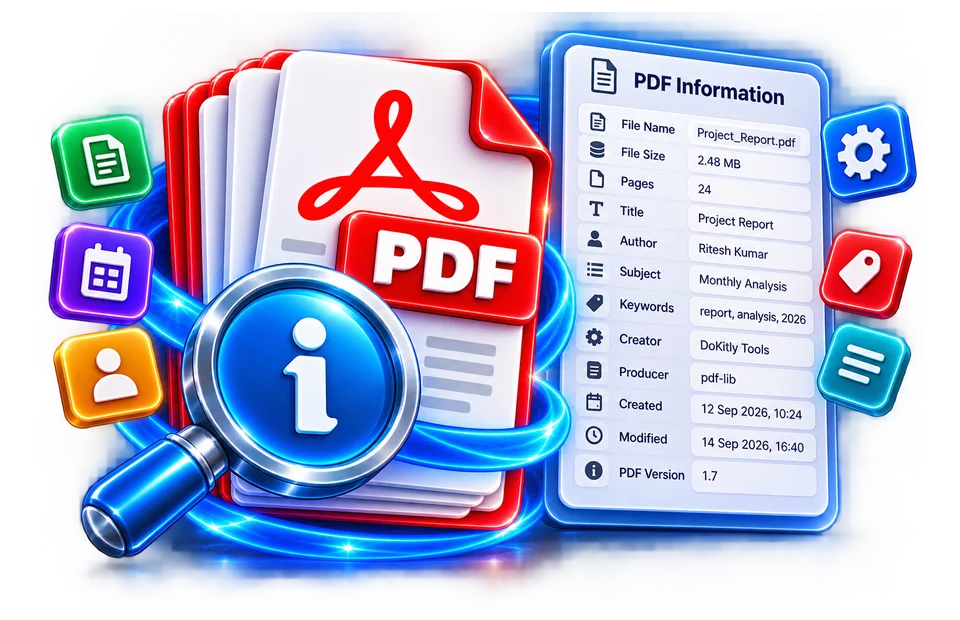
Extract pages 2–4 from a longer PDF and check the output page count.
Share just the required pages of a PDF.
Page numbering can differ between printed labels and file positions.
Extract pages 2–4 from a longer PDF and check the output page count.
Extract pages 10–15 from a larger reference and verify that the resulting six-page file contains the intended chapter rather than a neighbouring one.
Use the real tool above to verify the result. The example illustrates the workflow, not a guaranteed outcome.
Extract pages 10–15 from a larger reference and verify that the resulting six-page file contains the intended chapter rather than a neighbouring one.
A page label printed in the document may differ from its PDF page index. Do not assume 'page 10' is the tenth physical sheet.

Extracting selected pages creates a smaller document with its own page order.
Extracting selected pages creates a smaller document with its own page order.
Extract pages 2–4 from a longer PDF and check the output page count.
Extract pages 10–15 from a larger reference and verify that the resulting six-page file contains the intended chapter rather than a neighbouring one.
Page extraction takes specific pages from an existing PDF and writes them into a separate file. If a 20-page manual contains a relevant diagram on pages 8–10, extracting those three pages should produce a three-page PDF while leaving the original untouched. The output is not a set of image files unless the chosen export mode explicitly says so. A viewer can display extracted pages as ordinary PDF pages, with whatever vector, text or raster content was preserved by the selected processing engine.
Selecting pages requires attention to indexing. Human-facing PDF viewers usually number pages beginning at one, while some internal APIs index arrays from zero. A well-designed interface should translate between these, but users should confirm thumbnails and output rather than relying on code assumptions. A document may also print Roman numerals in its footer, so "page vii" may not correspond to PDF position seven. Find the target by content before entering ranges in an unfamiliar document.
A new PDF containing only selected pages may carry document-level metadata copied from its source. Even though omitted pages are no longer visually present, the output might still include information in metadata or retained attachments depending on implementation. Review the new file separately if it will be shared publicly. Do not use page extraction as proof that every secret from a source document has been removed. A clean sharing workflow may require checking annotations, attachments, links and permissions as well as visible page content.
If extracted pages contain internal links pointing to pages that were not included, those links may stop working. Bookmarks can also become inaccurate when their destinations are absent. A short excerpt taken from a signed report may no longer retain the original document's digital signature validity. When sending an excerpt, label it clearly as an extract and avoid implying it is the complete signed original.
Open the downloaded PDF and inspect the first and last extracted pages against the corresponding original pages. Confirm count and sequence; for a selection 2, 5, 9 the result should appear in that explicit order if the interface promises ordered selection. Check text selection on a previously searchable page and inspect the resolution of scanned content. If the output is unexpectedly blurry, the engine may have rasterized the pages rather than preserving native content. Keep the source PDF intact to repeat the extraction with different page ranges.
A thesis may have a cover, contents and introduction numbered with Roman numerals before page 1 of the main text. Extracting visible “page 12” is not always equivalent to selecting the twelfth PDF page. Use thumbnails or a viewer to identify the intended start and end positions. For example, if the PDF has four preliminary pages, printed page 12 could be PDF position 16. Verify this against the actual document because covers and unnumbered separators vary. The extracted document may lack context, internal cross-references and a valid signature from the source. Label it as an extract and keep the complete original for traceability.
Extracting pages 7–9 from a larger manual is useful for sharing one procedure without forwarding the entire file. Check whether the interface expects one-based page numbers and whether the selected range includes both endpoints. The three extracted pages may display printed page numbers such as 41, 42 and 43 because these numbers belong to the original document artwork. A PDF with only three pages might also retain bookmarks or links whose destinations are absent, depending on the extraction engine. Inspect both first and last extracted pages, especially when the manual contains rotated inserts or landscape diagrams.
Printed numbers may remain visible, but the new PDF's page sequence starts from its first extracted page.
Bookmarks or cross-references pointing outside the extracted range may no longer be meaningful in the smaller document.
Extraction selects whole pages; cropping changes the visible region within a page.
Not necessarily. Inspect metadata separately if the source or creator fields are sensitive.