
Write Markdown headings and examples
Write a heading, a two-item list and a link; compare the source with the preview.

Write Markdown with a safe live preview. Raw HTML is escaped instead of executed.
Processed privately in your browser.
Markdown keeps readable source separate from its rendered preview.
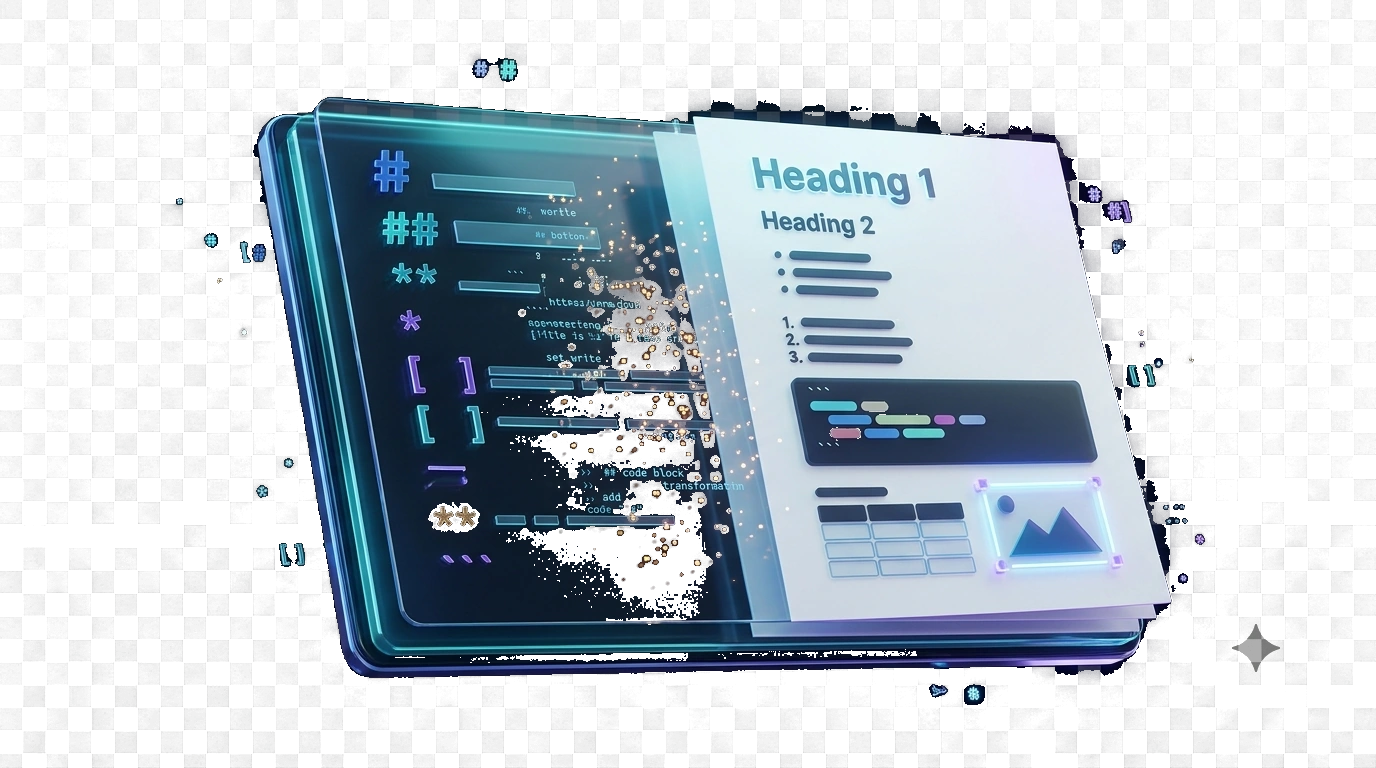
Write a heading, a two-item list and a link; compare the source with the preview.
Write Markdown and preview headings, links and lists.
Raw HTML is escaped in the safety-focused preview.
Write a heading, a two-item list and a link; compare the source with the preview.
The source '# Release notes' becomes a heading, while '- Fixed image export' becomes a list item. Keep source and preview separate when copying to a system that expects plain Markdown.
Use the real tool above to verify the result. The example illustrates the workflow, not a guaranteed outcome.
The source '# Release notes' becomes a heading, while '- Fixed image export' becomes a list item. Keep source and preview separate when copying to a system that expects plain Markdown.
Different Markdown renderers support different extensions. Raw HTML and remote images can have security or compatibility implications.

Write a heading, a two-item list and a link; compare the source with the preview.
The source '# Release notes' becomes a heading, while '- Fixed image export' becomes a list item. Keep source and preview separate when copying to a system that expects plain Markdown.
Markdown is a lightweight way to write headings, emphasis, lists, links and code blocks using plain text syntax. A line starting with # followed by a space becomes a first-level heading in many renderers. Writing **important** indicates emphasis, while backticks are useful for short code terms. The preview converts this text into visual formatting, but the Markdown document itself remains editable source. Use the preview to catch broken formatting before exporting the .md file to a repository, knowledge base or content management system.
For a small project note, structure the page with a descriptive heading, two or three subheadings, short paragraphs and a list of decisions. Avoid making every line a heading; that reduces scannability and semantic structure. When demonstrating code, wrap it in a fenced code block so syntax such as angle brackets is shown literally rather than interpreted as markup. A plain Markdown download is not the same as a complete HTML webpage with styles, images and scripts.
A Markdown link such as [Guide](https://example.com/guide) stores a readable label and an explicit destination. Verify the destination before publishing; a convincing label can still point to an unrelated site. Relative image paths depend on where the final Markdown file is stored. If an image displays in a local editor but not after uploading the document elsewhere, inspect the path, capitalization and permissions. A Markdown file does not embed referenced images automatically unless the editor has a specific packaging workflow.
Different platforms implement different Markdown extensions. Tables, checklists, embedded HTML and syntax highlighting may work in one renderer but appear as plain text in another. If a document will be published on GitHub, check the preview against GitHub-flavoured Markdown conventions. For accessibility, use meaningful link labels instead of "click here", descriptive image alt text and a logical progression of heading levels. These editorial details remain useful even when the source syntax is valid.
Markdown that supports raw HTML can create security concerns when untrusted content is rendered without sanitization. A preview in one application should not be assumed to guarantee identical security treatment on a different website. If a tool strips scripts or escapes dangerous elements, regard that as a safety feature rather than a formatting defect. Save the source Markdown and review the target platform's actual rendered output. If an exported file opens as plain text, that is expected; Markdown editors provide the rich visual rendering.
The text "- [ ] Review draft" can render as an unchecked task item in Markdown variants that support task lists. In a simpler parser it may remain ordinary text. Similarly, a table written with pipe characters may need separator rows to be recognized. When moving content between platforms, inspect the exported source and the destination preview for broken tables or flattened checkboxes. The writer should not assume that one local preview defines a universal Markdown standard.
A project README can mix headings, bullet lists, fenced code and clickable links. Previewing helps catch a missing closing code fence that would accidentally render the rest of the document as code. Different Markdown dialects may handle tables, task checkboxes and raw HTML differently, so a preview in this studio is not proof that every publishing platform will look identical. For untrusted pasted Markdown, consider that raw embedded HTML may be sanitised or interpreted differently by the destination. Keep the original Markdown file for editable source and check the final rendered page in the target environment before publishing important documentation.
No. Rendering rules vary; never rely on arbitrary HTML execution for a safe document preview.
No. Tables, code highlighting and raw HTML may be handled differently by GitHub, documentation sites and editors.
Table syntax is not part of every minimal Markdown parser, and CSS styling also differs between renderers.
No. The output's safety depends on sanitisation and where it is embedded, particularly with untrusted source text.